C# SkiaSharp
last modified October 18, 2026
In this article we show how to create simple 2D graphics in C# using the SkiaSharp library.
Skia is an open source 2D graphics library which works on multiple hardware and software platforms. Skia is used in Chrome, Android, Flutter, LibreOffice, Avalonia UI, or QuestPDF. The library is written in C++.
SkiaSharp provides .NET bindings to the Skia library. The examples in this article use SkiaSharp 4.
$ dotnet new console -n Gfx
$ cd Gfx
$ dotnet add package SkiaSharp
$ dotnet add package SkiaSharp.NativeAssets.Linux
The SkiaSharp package contains the native Skia libraries for
Windows and macOS. On Linux, we also need the
SkiaSharp.NativeAssets.Linux package. It requires the fontconfig
library, which is present on desktop systems; in minimal Docker images, we can
use SkiaSharp.NativeAssets.Linux.NoDependencies instead.
The basic objects of SkiaSharp are:
SKBitmap– a raster image in memorySKCanvas– the drawing surface; it provides the drawing methodsSKPaint– describes how to draw: colour, stroke width, style, antialiasing, shaders
These classes wrap native objects and implement IDisposable, so we
create them with using declarations.
SkiaSharp points
In the first example, we draw points.
using SkiaSharp;

using SKBitmap bmp = new(640, 480);
using SKCanvas canvas = new(bmp);
canvas.Clear(SKColor.Parse("#003366"));

Random rand = new(0);
using SKPaint paint = new() { Color = SKColors.FloralWhite };

for (int i = 0; i < 10000; i++)
{
    SKPoint pt = new(rand.Next(bmp.Width), rand.Next(bmp.Height));
    canvas.DrawPoint(pt, paint);
}

using SKFileWStream fs = new("points.png");
bmp.Encode(fs, SKEncodedImageFormat.Png, 100);
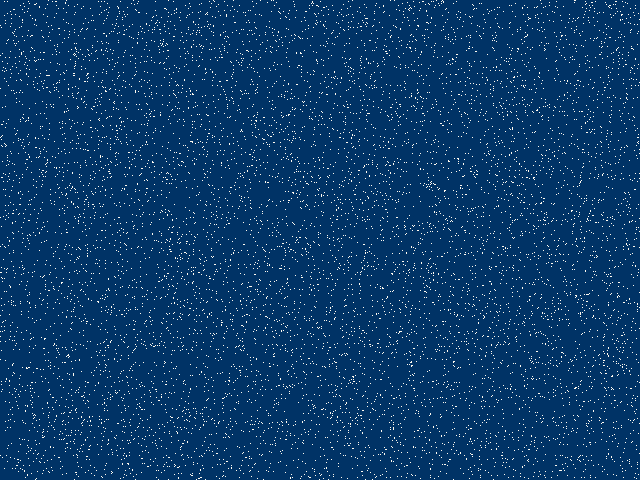
In the program, we randomly draw 10000 points on the canvas. The drawing is saved to a PNG image.
using SKBitmap bmp = new(640, 480);
using SKCanvas canvas = new(bmp);
canvas.Clear(SKColor.Parse("#003366"));
We create a bitmap and a canvas that draws on it. We fill the canvas with dark blue colour.
using SKPaint paint = new() { Color = SKColors.FloralWhite };
SKPaint contains the style and colour information about how to draw
geometries, text, and bitmaps.
for (int i = 0; i < 10000; i++)
{
    SKPoint pt = new(rand.Next(bmp.Width), rand.Next(bmp.Height));
    canvas.DrawPoint(pt, paint);
}
In a for loop, we create thousands of points and draw them on the canvas with
DrawPoint. The points have random coordinates within the bounds
of the canvas. The random generator has a fixed seed, so the program draws the
same image on each run.
using SKFileWStream fs = new("points.png");
bmp.Encode(fs, SKEncodedImageFormat.Png, 100);
We encode the bitmap to PNG and write it to a file. The last parameter is the quality; it matters only for lossy formats such as JPEG and WebP. The stream must be disposed, so that all data is written to the file.
SkiaSharp lines
Lines are drawn with DrawLine.
using SkiaSharp;

using SKBitmap bmp = new(500, 400);
using SKCanvas canvas = new(bmp);
canvas.Clear(SKColor.Parse("#003366"));

using SKPaint p1 = new() { Color = SKColors.FloralWhite, StrokeWidth = 1 };
using SKPaint p2 = new() { Color = SKColors.DarkSeaGreen, StrokeWidth = 4 };
using SKPaint p3 = new()
{
    Color = SKColors.AliceBlue,
    StrokeWidth = 8,
    StrokeCap = SKStrokeCap.Round,
    IsAntialias = true
};
using SKPaint p4 = new()
{
    Color = SKColors.Orange,
    StrokeWidth = 3,
    PathEffect = SKPathEffect.CreateDash([20, 10], 0)
};

canvas.DrawLine(50, 50, 450, 50, p1);
canvas.DrawLine(50, 150, 450, 150, p2);
canvas.DrawLine(50, 250, 450, 250, p3);
canvas.DrawLine(50, 350, 450, 350, p4);

using SKFileWStream fs = new("lines.png");
bmp.Encode(fs, SKEncodedImageFormat.Png, 100);
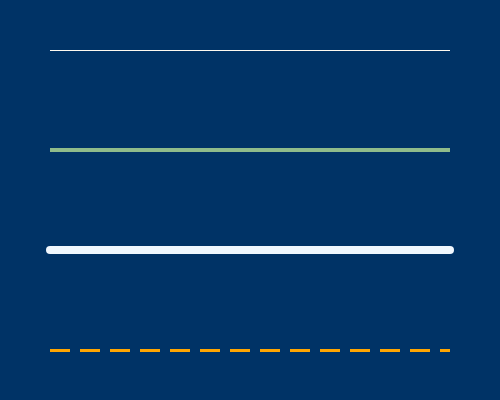
In the program, we draw four horizontal lines on the canvas.
using SKPaint p1 = new() { Color = SKColors.FloralWhite, StrokeWidth = 1 };
using SKPaint p2 = new() { Color = SKColors.DarkSeaGreen, StrokeWidth = 4 };
For the lines, we define SKPaint objects with different colours
and stroke widths.
StrokeCap = SKStrokeCap.Round,
The stroke cap determines the shape of the line ends. The default
Butt cap ends the line exactly at its end point; the
Round cap adds a semicircle.
PathEffect = SKPathEffect.CreateDash([20, 10], 0)
A dash path effect draws a dashed line. The array contains the lengths of the dashes and the gaps; the second parameter is the offset into the pattern.
canvas.DrawLine(50, 50, 450, 50, p1);
The parameters of the DrawLine method are the x and y coordinates
of the two end points and the paint.
SkiaSharp rectangles
Rectangles are drawn with DrawRect and
DrawRoundRect.
using SkiaSharp;

using SKBitmap bmp = new(650, 250);
using SKCanvas canvas = new(bmp);
canvas.Clear(SKColor.Parse("#003366"));

using SKPaint p1 = new() { Color = SKColors.White.WithAlpha(60) };
canvas.DrawRect(50, 50, 150, 150, p1);

using SKPaint p2 = new() { Color = SKColors.SlateGray, IsAntialias = true };
canvas.DrawRoundRect(250, 50, 150, 150, 20, 20, p2);

using SKPaint p3 = new()
{
    Color = SKColors.Gold,
    Style = SKPaintStyle.Stroke,
    StrokeWidth = 4,
    IsAntialias = true
};
canvas.DrawRect(SKRect.Create(450, 50, 150, 150), p3);

using SKFileWStream fs = new("rectangles.png");
bmp.Encode(fs, SKEncodedImageFormat.Png, 100);
In the program, we draw a partially transparent rectangle, a rectangle with rounded corners, and an outline of a rectangle.
using SKPaint p1 = new() { Color = SKColors.White.WithAlpha(60) };
canvas.DrawRect(50, 50, 150, 150, p1);
The colour of the first rectangle has an alpha value of 60 out of 255; it is
partially transparent and the background shows through. The parameters of
DrawRect are the x and y coordinates of the top-left corner and
the width and height of the rectangle.
canvas.DrawRoundRect(250, 50, 150, 150, 20, 20, p2);
The fifth and sixth parameters of DrawRoundRect are the x and y
radii of the ovals used to round the corners. The paint uses antialiasing,
which makes the rounded corners look smooth.
Style = SKPaintStyle.Stroke,
By default, shapes are filled. With SKPaintStyle.Stroke, only the
outline is drawn.
canvas.DrawRect(SKRect.Create(450, 50, 150, 150), p3);
The rectangle can also be given as an SKRect. Note that the
SKRect constructor takes the left, top, right, and bottom
coordinates; SKRect.Create takes the position and size.

SkiaSharp circles
Circles are drawn with DrawCircle, ellipses with
DrawOval.
using SkiaSharp;

using SKBitmap bmp = new(640, 480);
using SKCanvas canvas = new(bmp);
canvas.Clear(SKColor.Parse("#003366"));

using SKPaint p1 = new() { Color = SKColors.White };
using SKPaint p2 = new() { Color = SKColors.White, IsAntialias = true };
using SKPaint p3 = new()
{
    Color = SKColors.AntiqueWhite,
    Style = SKPaintStyle.Stroke,
    StrokeWidth = 5,
    IsAntialias = true
};

canvas.DrawCircle(120, 120, 80, p1);
canvas.DrawCircle(320, 120, 80, p2);
canvas.DrawCircle(520, 120, 80, p3);

canvas.DrawOval(320, 340, 250, 90, p3);

using SKFileWStream fs = new("circles.png");
bmp.Encode(fs, SKEncodedImageFormat.Png, 100);
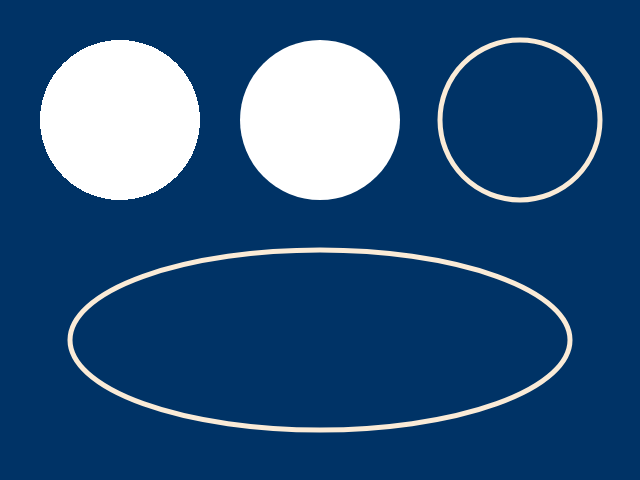
In the program we draw three circles and an ellipse.
canvas.DrawCircle(120, 120, 80, p1);
canvas.DrawCircle(320, 120, 80, p2);
The parameters of DrawCircle are the x and y coordinates of the
centre point, the radius, and the paint. The first circle is drawn without
antialiasing; when we zoom in, its edge is jagged. The second circle has smooth
edges.
canvas.DrawOval(320, 340, 250, 90, p3);
The parameters of DrawOval are the centre point and the horizontal
and vertical radii.
SkiaSharp Bézier curves
A Bézier curve is a smooth curve defined by its end points and one or more
control points. A quadratic curve has one control point, a cubic curve has
two. Curves are parts of a path; SKPath is a compound geometric
path consisting of straight line segments, quadratic curves, cubic curves, and
arcs. In SkiaSharp 4, paths are constructed with SKPathBuilder.
using SkiaSharp;

using SKBitmap bmp = new(640, 360);
using SKCanvas canvas = new(bmp);
canvas.Clear(SKColor.Parse("#003366"));

using SKPaint curve = new()
{
    IsAntialias = true,
    Color = SKColors.White,
    Style = SKPaintStyle.Stroke,
    StrokeWidth = 6,
    StrokeCap = SKStrokeCap.Round
};

using SKPaint helper = new()
{
    IsAntialias = true,
    Color = SKColors.Orange,
    Style = SKPaintStyle.Stroke,
    StrokeWidth = 1,
    PathEffect = SKPathEffect.CreateDash([6, 4], 0)
};

using SKPathBuilder builder = new();

builder.MoveTo(30, 300);
builder.QuadTo(160, 20, 290, 300);
using SKPath quad = builder.Detach();

canvas.DrawLine(30, 300, 160, 20, helper);
canvas.DrawLine(160, 20, 290, 300, helper);
canvas.DrawPath(quad, curve);

builder.MoveTo(350, 300);
builder.CubicTo(380, 20, 580, 340, 610, 60);
using SKPath cubic = builder.Detach();

canvas.DrawLine(350, 300, 380, 20, helper);
canvas.DrawLine(580, 340, 610, 60, helper);
canvas.DrawPath(cubic, curve);

using SKFileWStream fs = new("bezier.png");
bmp.Encode(fs, SKEncodedImageFormat.Png, 100);
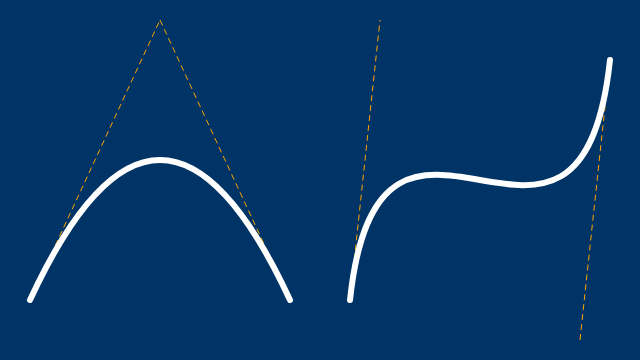
In the program, we draw a quadratic and a cubic Bézier curve. The dashed helper lines connect the end points with the control points.
using SKPathBuilder builder = new();

builder.MoveTo(30, 300);
builder.QuadTo(160, 20, 290, 300);
using SKPath quad = builder.Detach();
We begin by moving to the starting point with MoveTo. The
QuadTo method adds a quadratic curve; its parameters are the
control point and the end point. The Detach method returns the
finished path and resets the builder, so we can reuse it for the next path.
builder.MoveTo(350, 300);
builder.CubicTo(380, 20, 580, 340, 610, 60);
using SKPath cubic = builder.Detach();
The CubicTo method adds a cubic curve with two control points.
With two control points, the curve can change the direction of its bend.
canvas.DrawPath(quad, curve);
The path is drawn to the canvas with DrawPath.
SkiaSharp text
Text is drawn with DrawText. The font is described by an
SKFont object, which holds the typeface and the size.
using SkiaSharp;

using SKBitmap bmp = new(640, 240);
using SKCanvas canvas = new(bmp);
canvas.Clear(SKColor.Parse("#003366"));

using SKTypeface typeface = SKTypeface.FromFamilyName("DejaVu Sans",
    SKFontStyle.Bold);
using SKFont font = new(typeface, 48);
using SKPaint paint = new() { Color = SKColors.White, IsAntialias = true };

string text = "Hello SkiaSharp";

float width = font.MeasureText(text);
Console.WriteLine($"{typeface.FamilyName}, text width: {width:F1}");

canvas.DrawText(text, bmp.Width / 2f, 110, SKTextAlign.Center, font, paint);

using SKFont small = new(SKTypeface.Default, 20);
canvas.DrawText("Skia is a 2D graphics library", 320, 170,
    SKTextAlign.Center, small, paint);

using SKFileWStream fs = new("text.png");
bmp.Encode(fs, SKEncodedImageFormat.Png, 100);
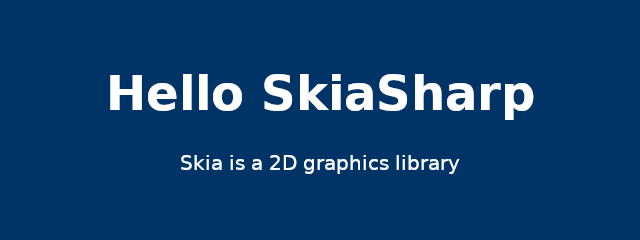
We draw two lines of centred text.
using SKTypeface typeface = SKTypeface.FromFamilyName("DejaVu Sans",
    SKFontStyle.Bold);
using SKFont font = new(typeface, 48);
We look up a font family installed on the system. If the family does not
exist, Skia falls back to a default typeface. On Windows, we can use, for
instance, Segoe UI or Arial.
float width = font.MeasureText(text);
The MeasureText method returns the width of the text in pixels.
It is useful for laying out text manually.
canvas.DrawText(text, bmp.Width / 2f, 110, SKTextAlign.Center, font, paint);
The coordinates specify the position of the baseline. With
SKTextAlign.Center, the x coordinate is the horizontal centre of
the text.
$ dotnet run
DejaVu Sans, text width: 429.0
SkiaSharp gradients
Gradients are created with shaders. A shader assigned to a paint determines the colour of each drawn pixel.
using SkiaSharp;

using SKBitmap bmp = new(640, 360);
using SKCanvas canvas = new(bmp);
canvas.Clear(SKColors.White);

using SKPaint p1 = new() { IsAntialias = true };
p1.Shader = SKShader.CreateLinearGradient(
    new SKPoint(20, 20), new SKPoint(300, 340),
    [SKColors.DodgerBlue, SKColors.MediumPurple, SKColors.Crimson],
    [0f, 0.5f, 1f],
    SKShaderTileMode.Clamp);

canvas.DrawRoundRect(20, 20, 280, 320, 16, 16, p1);

using SKPaint p2 = new() { IsAntialias = true };
p2.Shader = SKShader.CreateRadialGradient(
    new SKPoint(470, 180), 150,
    [SKColors.Gold, SKColors.OrangeRed],
    SKShaderTileMode.Clamp);

canvas.DrawCircle(470, 180, 150, p2);

using SKFileWStream fs = new("gradients.png");
bmp.Encode(fs, SKEncodedImageFormat.Png, 100);
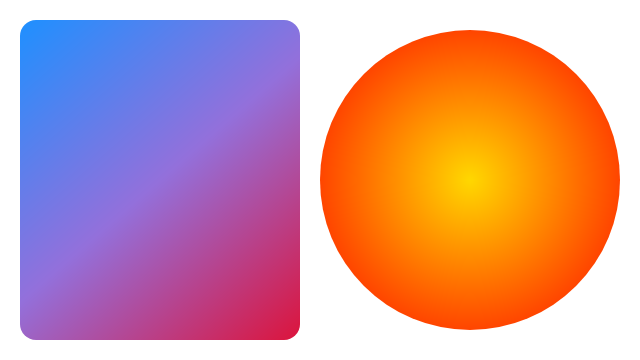
We fill a rounded rectangle with a linear gradient and a circle with a radial gradient.
p1.Shader = SKShader.CreateLinearGradient(
    new SKPoint(20, 20), new SKPoint(300, 340),
    [SKColors.DodgerBlue, SKColors.MediumPurple, SKColors.Crimson],
    [0f, 0.5f, 1f],
    SKShaderTileMode.Clamp);
A linear gradient changes the colour along the line between two points, here
diagonally across the rectangle. The positions array places the colours along
the line: at the start, in the middle, and at the end. The tile mode determines
what happens outside the line; Clamp repeats the edge colours.
p2.Shader = SKShader.CreateRadialGradient(
    new SKPoint(470, 180), 150,
    [SKColors.Gold, SKColors.OrangeRed],
    SKShaderTileMode.Clamp);
A radial gradient changes the colour from the centre outwards. Without a positions array, the colours are distributed evenly.
SkiaSharp resize image
SkiaSharp can also load and transform existing images. In the next example, we create a thumbnail of an image.
using SkiaSharp;

using SKBitmap original = SKBitmap.Decode("gradients.png");
Console.WriteLine($"original: {original.Width}x{original.Height}");

int width = 320;
int height = original.Height * width / original.Width;

using SKBitmap resized = original.Resize(new SKImageInfo(width, height),
    new SKSamplingOptions(SKCubicResampler.Mitchell));

Console.WriteLine($"resized: {resized.Width}x{resized.Height}");

using SKImage image = SKImage.FromBitmap(resized);
using SKData data = image.Encode(SKEncodedImageFormat.Jpeg, 85);

using var fs = File.Create("thumbnail.jpg");
data.SaveTo(fs);
We load the image created in the previous example, scale it down to half its width, and save it as JPEG.
using SKBitmap original = SKBitmap.Decode("gradients.png");
The Decode method loads an image from a file. It supports PNG,
JPEG, GIF, BMP, WebP, and other formats. It returns null if the
image cannot be decoded.
int width = 320;
int height = original.Height * width / original.Width;
We compute the height to keep the aspect ratio.
using SKBitmap resized = original.Resize(new SKImageInfo(width, height),
    new SKSamplingOptions(SKCubicResampler.Mitchell));
The Resize method returns a new bitmap. The sampling options
determine the quality of the scaling; the cubic Mitchell filter gives good
results for downscaling photos.
using SKImage image = SKImage.FromBitmap(resized);
using SKData data = image.Encode(SKEncodedImageFormat.Jpeg, 85);

using var fs = File.Create("thumbnail.jpg");
data.SaveTo(fs);
This is another way to save an image. We encode it to an SKData
buffer with a JPEG quality of 85 and write the buffer to a regular .NET
stream.
$ dotnet run
original: 640x360
resized: 320x180
Source
In this article we have created 2D graphics in C# using the SkiaSharp library.
Author
List all C# tutorials.