Hit testing, moving objects
last modified July 17, 2023
In this part of the Java 2D programming tutorial, we first talk about hit testing. We show how to determine if we have clicked inside a shape on a panel. In the second example, we create two shapes that we can move with a mouse on the panel and resize them with a mouse wheel. In the last example we be resizing a rectangle with two controlling points.
Hit testing
Hit testing is determining if we have clicked inside a Shape
with a mouse pointer. Each Shape has a contains method.
The method tests if a specified Point2D is inside the
boundary of a Shape.
package com.zetcode;

import java.awt.AlphaComposite;
import java.awt.Color;
import java.awt.EventQueue;
import java.awt.Graphics;
import java.awt.Graphics2D;
import java.awt.RenderingHints;
import java.awt.event.MouseAdapter;
import java.awt.event.MouseEvent;
import java.awt.geom.Ellipse2D;
import java.awt.geom.Rectangle2D;
import java.util.logging.Level;
import java.util.logging.Logger;
import javax.swing.JFrame;
import javax.swing.JPanel;

class Surface extends JPanel {

    private Rectangle2D rect;
    private Ellipse2D ellipse;
    private float alpha_rectangle;
    private float alpha_ellipse;

    public Surface() {

        initSurface();
    }

    private void initSurface() {

        addMouseListener(new HitTestAdapter());

        rect = new Rectangle2D.Float(20f, 20f, 80f, 50f);
        ellipse = new Ellipse2D.Float(120f, 30f, 60f, 60f);

        alpha_rectangle = 1f;
        alpha_ellipse = 1f;
    }

    private void doDrawing(Graphics g) {

        Graphics2D g2d = (Graphics2D) g.create();

        g2d.setPaint(new Color(50, 50, 50));

        RenderingHints rh = new RenderingHints(RenderingHints.KEY_ANTIALIASING,
                RenderingHints.VALUE_ANTIALIAS_ON);

        rh.put(RenderingHints.KEY_RENDERING,
                RenderingHints.VALUE_RENDER_QUALITY);

        g2d.setRenderingHints(rh);

        g2d.setComposite(AlphaComposite.getInstance(AlphaComposite.SRC_OVER,
                alpha_rectangle));
        g2d.fill(rect);

        g2d.setComposite(AlphaComposite.getInstance(AlphaComposite.SRC_OVER,
                alpha_ellipse));
        g2d.fill(ellipse);

        g2d.dispose();
    }

    @Override
    public void paintComponent(Graphics g) {

        super.paintComponent(g);
        doDrawing(g);
    }

    class RectRunnable implements Runnable {

        private Thread runner;

        public RectRunnable() {

            initThread();
        }

        private void initThread() {

            runner = new Thread(this);
            runner.start();
        }

        @Override
        public void run() {

            while (alpha_rectangle >= 0) {

                repaint();
                alpha_rectangle += -0.01f;

                if (alpha_rectangle < 0) {
                    alpha_rectangle = 0;
                }

                try {

                    Thread.sleep(50);
                } catch (InterruptedException ex) {

                     Logger.getLogger(Surface.class.getName()).log(Level.SEVERE,
                             null, ex);
                }
            }
        }
    }

    class HitTestAdapter extends MouseAdapter
            implements Runnable {

        private RectRunnable rectAnimator;
        private Thread ellipseAnimator;

        @Override
        public void mousePressed(MouseEvent e) {

            int x = e.getX();
            int y = e.getY();

            if (rect.contains(x, y)) {

                rectAnimator = new RectRunnable();
            }

            if (ellipse.contains(x, y)) {

                ellipseAnimator = new Thread(this);
                ellipseAnimator.start();
            }
        }

        @Override
        public void run() {

            while (alpha_ellipse >= 0) {

                repaint();
                alpha_ellipse += -0.01f;

                if (alpha_ellipse < 0) {

                    alpha_ellipse = 0;
                }

                try {

                    Thread.sleep(50);
                } catch (InterruptedException ex) {

                    Logger.getLogger(Surface.class.getName()).log(Level.SEVERE,
                        null, ex);
                }
            }
        }
    }
}

public class HitTestingEx extends JFrame {

    public HitTestingEx() {

        add(new Surface());

        setTitle("Hit testing");
        setSize(250, 150);
        setDefaultCloseOperation(JFrame.EXIT_ON_CLOSE);
        setLocationRelativeTo(null);
    }

    public static void main(String[] args) {

        EventQueue.invokeLater(new Runnable() {

            @Override
            public void run() {
                HitTestingEx ex = new HitTestingEx();
                ex.setVisible(true);
            }
        });
    }
}
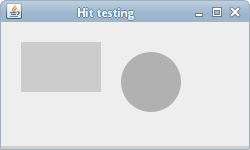
In our example, we have two Shapes: a rectangle and a circle.
By clicking on them they gradually begin to fade away. In this example, we use threads.
private Rectangle2D rect;
private Ellipse2D ellipse;
We work with a rectangle and an ellipse.
private float alpha_rectangle;
private float alpha_ellipse;
These two variables control the transparency of the two geometrical objects.
g2d.setComposite(AlphaComposite.getInstance(AlphaComposite.SRC_OVER,
                                            alpha_rectangle));
g2d.fill(rect);
Inside the doDrawing method, we set the transparency of the rectangle.
The alpha_rectangle is computed inside a dedicated Thread.
The HitTestAdapter class is responsible for handling of mouse events.
It does implement the Runnable interface, which means that it
also creates the first thread.
if (ellipse.contains(x, y)) {

    ellipseAnimator = new Thread(this);
    ellipseAnimator.start();
}
If we press inside the ellipse a new Thread is created.
The thread calls the run method. In our case,
it is the run method of
the class itself (HitTestAdapter).
if (rect.contains(x, y)) {

    rectAnimator = new RectRunnable();
}
For the rectangle, we have a separate inner class—the RectRunnable
class. This class creates its own thread in the constructor.
public void run() {

    while (alpha_ellipse >= 0) {

        repaint();
        alpha_ellipse += -0.01f;
        ...
    }
Note that the run method is only called once. To actually do
something, we have to implement a while loop. The while loop repaints the panel
and decrements the alpha_ellipse
variable.
Moving and Scaling
In the next section we learn how to move and scale graphical objects with a mouse on the panel. It can be used to move and scale charts, diagrams or other various objects in our application.
package com.zetcode;

import java.awt.Color;
import java.awt.EventQueue;
import java.awt.Font;
import java.awt.Graphics;
import java.awt.Graphics2D;
import java.awt.RenderingHints;
import java.awt.event.MouseAdapter;
import java.awt.event.MouseEvent;
import java.awt.event.MouseWheelEvent;
import java.awt.event.MouseWheelListener;
import java.awt.geom.Ellipse2D;
import java.awt.geom.Rectangle2D;
import javax.swing.JFrame;
import javax.swing.JPanel;


class Surface extends JPanel {

    private ZRectangle zrect;
    private ZEllipse zell;

    public Surface() {

        initUI();
    }

    private void initUI() {

        MovingAdapter ma = new MovingAdapter();

        addMouseMotionListener(ma);
        addMouseListener(ma);
        addMouseWheelListener(new ScaleHandler());

        zrect = new ZRectangle(50, 50, 50, 50);
        zell = new ZEllipse(150, 70, 80, 80);
    }

    private void doDrawing(Graphics g) {

        Graphics2D g2d = (Graphics2D) g;

        Font font = new Font("Serif", Font.BOLD, 40);
        g2d.setFont(font);

        g2d.setRenderingHint(RenderingHints.KEY_ANTIALIASING,
                        RenderingHints.VALUE_ANTIALIAS_ON);
        g2d.setRenderingHint(RenderingHints.KEY_TEXT_ANTIALIASING,
                        RenderingHints.VALUE_TEXT_ANTIALIAS_ON);

        g2d.setPaint(new Color(0, 0, 200));
        g2d.fill(zrect);
        g2d.setPaint(new Color(0, 200, 0));
        g2d.fill(zell);
    }

    @Override
    public void paintComponent(Graphics g) {
        super.paintComponent(g);

        doDrawing(g);
    }

    class ZEllipse extends Ellipse2D.Float {

        public ZEllipse(float x, float y, float width, float height) {

            setFrame(x, y, width, height);
        }

        public boolean isHit(float x, float y) {

            return getBounds2D().contains(x, y);
        }

        public void addX(float x) {

            this.x += x;
        }

        public void addY(float y) {

            this.y += y;
        }

        public void addWidth(float w) {

            this.width += w;
        }

        public void addHeight(float h) {

            this.height += h;
        }
    }

    class ZRectangle extends Rectangle2D.Float {

        public ZRectangle(float x, float y, float width, float height) {

            setRect(x, y, width, height);
        }

        public boolean isHit(float x, float y) {

            return getBounds2D().contains(x, y);
        }

        public void addX(float x) {

            this.x += x;
        }

        public void addY(float y) {

            this.y += y;
        }

        public void addWidth(float w) {

            this.width += w;
        }

        public void addHeight(float h) {

            this.height += h;
        }
    }

    class MovingAdapter extends MouseAdapter {

        private int x;
        private int y;

        @Override
        public void mousePressed(MouseEvent e) {

            x = e.getX();
            y = e.getY();
        }

        @Override
        public void mouseDragged(MouseEvent e) {

            doMove(e);
        }

        private void doMove(MouseEvent e) {

            int dx = e.getX() - x;
            int dy = e.getY() - y;

            if (zrect.isHit(x, y)) {

                zrect.addX(dx);
                zrect.addY(dy);
                repaint();
            }

            if (zell.isHit(x, y)) {

                zell.addX(dx);
                zell.addY(dy);
                repaint();
            }

            x += dx;
            y += dy;
        }
    }

    class ScaleHandler implements MouseWheelListener {

        @Override
        public void mouseWheelMoved(MouseWheelEvent e) {

            doScale(e);
        }

        private void doScale(MouseWheelEvent e) {

            int x = e.getX();
            int y = e.getY();

            if (e.getScrollType() == MouseWheelEvent.WHEEL_UNIT_SCROLL) {

                if (zrect.isHit(x, y)) {

                    float amount =  e.getWheelRotation() * 5f;
                    zrect.addWidth(amount);
                    zrect.addHeight(amount);
                    repaint();
                }

                if (zell.isHit(x, y)) {

                    float amount =  e.getWheelRotation() * 5f;
                    zell.addWidth(amount);
                    zell.addHeight(amount);
                    repaint();
                }
            }
        }
    }
}

public class MovingScalingEx extends JFrame {

    public MovingScalingEx() {

        initUI();
    }

    private void initUI() {

        add(new Surface());

        setTitle("Moving and scaling");
        setSize(300, 300);
        setDefaultCloseOperation(JFrame.EXIT_ON_CLOSE);
        setLocationRelativeTo(null);
    }

    public static void main(String[] args) {

        EventQueue.invokeLater(new Runnable() {

            @Override
            public void run() {
                MovingScalingEx ex = new MovingScalingEx();
                ex.setVisible(true);
            }
        });
    }
}
In our code example, we have two graphical objects: a rectangle and a circle. We can move both by clicking on them and dragging them. We can also scale them up or down by positioning the mouse cursor over the objects and moving the mouse wheel.
private ZRectangle zrect;
private ZEllipse zell;
As we have already mentioned, we have a rectangle and an ellipse on our panel. Both classes extend the functionality of a built-in classes from the Java AWT package.
addMouseMotionListener(ma);
addMouseListener(ma);
addMouseWheelListener(new ScaleHandler());
We register three listeners. These listeners capture mouse press, mouse drag, and mouse wheel events.
class ZEllipse extends Ellipse2D.Float {

    public ZEllipse(float x, float y, float width, float height) {

        setFrame(x, y, width, height);
    }

    public boolean isHit(float x, float y) {

        return getBounds2D().contains(x, y);
    }
...
}
This code excerpt shows a ZEllipse class. It extends the
built-in Ellipse2D.Float class. It adds functionality for
scaling and moving an ellipse. For example, the isHit method
determines if the mouse pointer is inside the area of an ellipse.
The MovingAdapter class handles the mouse press and mouse
drag events.
@Override
public void mousePressed(MouseEvent e) {

    x = e.getX();
    y = e.getY();
}
In the mousePressed method, we store the initial x and y coordinates
of the object.
int dx = e.getX() - x;
int dy = e.getY() - y;
Inside the doMove method, we calculate
the distance by which we have dragged the object.
if (zrect.isHit(x, y)) {

    zrect.addX(dx);
    zrect.addY(dy);
    repaint();
}
Here if we are inside the area of the rectangle, we update the x and y coordinates of the rectangle and repaint the panel.
x += dx;
y += dy;
The initial coordinates are updated.
The ScaleHandler class handles the scaling of the objects.
if (e.getScrollType() == MouseWheelEvent.WHEEL_UNIT_SCROLL) {

    if (zrect.isHit(x, y)) {

        float amount =  e.getWheelRotation() * 5f;
        zrect.addWidth(amount);
        zrect.addHeight(amount);
        repaint();
    }
...
}
If we move a mouse wheel and our cursor is inside the area of
a rectangle, the rectangle is resized and the panel repainted.
The amount of the scaling is computed from the getWheelRotation
method, which returns the amount of the wheel rotation.
Resizig rectangle
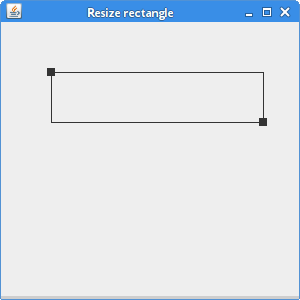
In the next example, we show how to resize a shape. Our shape is a rectangle. On the rectangle, we draw two small black rectangles. By clicking on these tiny rectangles and dragging them, we can resize the main rectangle.
package com.zetcode;

import java.awt.EventQueue;
import java.awt.Graphics;
import java.awt.Graphics2D;
import java.awt.Point;
import java.awt.event.MouseAdapter;
import java.awt.event.MouseEvent;
import java.awt.geom.Point2D;
import java.awt.geom.Rectangle2D;
import javax.swing.JFrame;
import javax.swing.JPanel;

class Surface extends JPanel {

    private Point2D[] points;
    private final int SIZE = 8;
    private int pos;

    public Surface() {

        initUI();
    }

    private void initUI() {

        addMouseListener(new ShapeTestAdapter());
        addMouseMotionListener(new ShapeTestAdapter());
        pos = -1;

        points = new Point2D[2];
        points[0] = new Point2D.Double(50, 50);
        points[1] = new Point2D.Double(150, 100);
    }

    private void doDrawing(Graphics g) {

        Graphics2D g2 = (Graphics2D) g;

        for (Point2D point : points) {
            double x = point.getX() - SIZE / 2;
            double y = point.getY() - SIZE / 2;
            g2.fill(new Rectangle2D.Double(x, y, SIZE, SIZE));
        }

        Rectangle2D r = new Rectangle2D.Double();
        r.setFrameFromDiagonal(points[0], points[1]);

        g2.draw(r);
    }

    @Override
    public void paintComponent(Graphics g) {
        super.paintComponent(g);

        doDrawing(g);
    }

    private class ShapeTestAdapter extends MouseAdapter {

        @Override
        public void mousePressed(MouseEvent event) {

            Point p = event.getPoint();

            for (int i = 0; i < points.length; i++) {

                double x = points[i].getX() - SIZE / 2;
                double y = points[i].getY() - SIZE / 2;

                Rectangle2D r = new Rectangle2D.Double(x, y, SIZE, SIZE);

                if (r.contains(p)) {

                    pos = i;
                    return;
                }
            }
        }

        @Override
        public void mouseReleased(MouseEvent event) {

            pos = -1;
        }

        @Override
        public void mouseDragged(MouseEvent event) {

            if (pos == -1) {
                return;
            }

            points[pos] = event.getPoint();
            repaint();
        }
    }
}

public class ResizingRectangleEx extends JFrame {

    public ResizingRectangleEx()  {

        initUI();
    }

    private void initUI() {

        add(new Surface());

        setTitle("Resize rectangle");
        setSize(300, 300);
        setDefaultCloseOperation(JFrame.EXIT_ON_CLOSE);
        setLocationRelativeTo(null);
    }

    public static void main(String[] args) {

        EventQueue.invokeLater(new Runnable() {

            @Override
            public void run() {
                ResizingRectangleEx ex = new ResizingRectangleEx();
                ex.setVisible(true);
            }
        });
    }
}
There are two ways to create a rectangle. One way is to provide x and y coordinates of the top-left point and the width and height of the rectangle. Another way is to provide the top-left and bottom-right points. In our code example we use both methods.
private Point2D[] points;
In this array, we store points that make our rectangle.
private final int SIZE = 8;
This is the size of the small black rectangles.
points = new Point2D[2];
points[0] = new Point2D.Double(50, 50);
points[1] = new Point2D.Double(150, 100);
These are the initial coordinates for the rectangle.
for (int i = 0; i < points.length; i++) {

    double x = points[i].getX() - SIZE / 2;
    double y = points[i].getY() - SIZE / 2;
    g2.fill(new Rectangle2D.Double(x, y, SIZE, SIZE));
}
This code draws the two small controlling rectangles.
Rectangle2D s = new Rectangle2D.Double();
s.setFrameFromDiagonal(points[0], points[1]);

g2.draw(s);
Here we draw a rectangle from the points.
@Override
public void mousePressed(MouseEvent event) {

    Point p = event.getPoint();

    for (int i = 0; i < points.length; i++) {

        double x = points[i].getX() - SIZE / 2;
        double y = points[i].getY() - SIZE / 2;

        Rectangle2D r = new Rectangle2D.Double(x, y, SIZE, SIZE);

        if (r.contains(p)) {

            pos = i;
            return;
        }
    }
}
In the mousePressed method, we determine if we have clicked
inside one of the two controlling points. If we hit one of them, the
pos variable stores which of them it was.
@Override
public void mouseDragged(MouseEvent event) {

    if (pos == -1) {
        return;
    }

    points[pos] = event.getPoint();
    repaint();
}
Here the rectangle is dynamically resized. During the mouseDragged
event, we get the current point, update our array of points, and repaint the panel.
In this part of the Java 2D tutorial, we covered hit testing and moving objects.

